
Windows 10 Support Has Ended: What Maple Ridge PC Users Should Do Next
Microsoft ended standard support for Windows 10 on October 14, 2025. A Windows 10 computer does not suddenly stop working, but the operating system no longer receives the normal security fixes, feature updates, or technical support that protect a modern computer over time.
For home users and small businesses in Maple Ridge and across British Columbia, the right next step is not always as simple as clicking Upgrade or buying the first replacement on a store shelf. Hardware compatibility, application requirements, data protection, performance, and the condition of the existing computer all matter. A careful assessment can help you choose between upgrading the current PC, improving selected components, using a short-term transition option, or moving to a properly configured Windows 11 system.
What Windows 10 end of support actually means
According to Microsoft’s Windows lifecycle guidance, Windows 10 PCs continue to start and run after the support deadline. The important difference is that standard security updates and fixes are no longer supplied. As new vulnerabilities are discovered, an unsupported operating system becomes progressively harder to justify for email, banking, cloud services, client records, remote work, and other sensitive activity.
This matters even when antivirus software is installed. Security is a chain: the operating system, applications, browser, account protection, backups, and user behaviour all have to work together. Antivirus cannot fully compensate for an operating system that is no longer receiving routine security maintenance.
Businesses also need to consider compliance, insurance, vendor requirements, and the expectations of clients whose information may be stored on a device. Continuing to use an unsupported system can create an avoidable risk even if the computer still feels fast.
Can your current PC run Windows 11 properly?
Windows 11 has specific hardware and security requirements, including a compatible processor, Secure Boot capability, and TPM 2.0. Microsoft’s PC Health Check tool can provide a useful first result, but it does not answer every practical question.
A proper readiness assessment should consider:
- Whether TPM 2.0 and Secure Boot are present, enabled, and configured correctly
- Processor and motherboard eligibility
- Available memory and storage space
- Storage health and remaining SSD life
- BIOS or firmware updates that may be required
- Driver support for graphics, audio, networking, printers, scanners, and specialist devices
- Compatibility of business, creative, gaming, accounting, or accessibility software
- Backup status before any operating-system change
Passing the minimum requirements only means the operating system can be installed. It does not guarantee that the complete computer will provide the performance, stability, or lifespan you expect. A premium workstation used for design, streaming, or business should be assessed against its real workload, not just a minimum specification.
Upgrade, improve, replace, or use a transition option?
Upgrade the existing computer
An in-place Windows 11 upgrade can make sense when the PC is fully compatible, healthy, and already performs well. Before proceeding, important files should be backed up and the system should be checked for storage errors, malware, outdated firmware, and applications that may interfere with migration.
Improve selected hardware first
Some compatible systems benefit from additional memory, a healthier or larger SSD, improved cooling, or another targeted upgrade. The key is to evaluate the computer as a complete system. Adding one fast component to an aging or unbalanced platform may not create a worthwhile result.
Replace the system
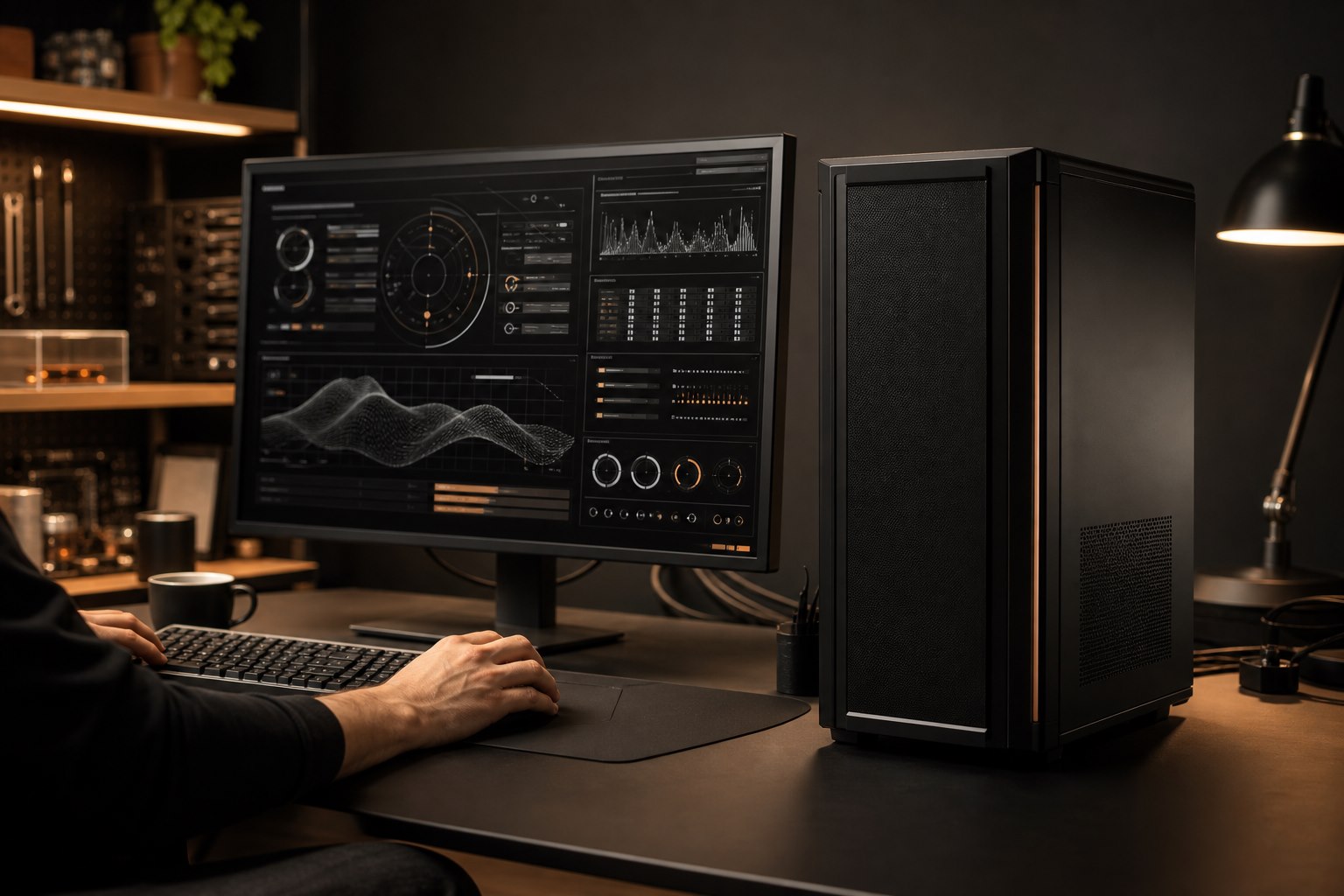
Replacement is often the better long-term decision when the existing computer is incompatible, unreliable, difficult to upgrade, or unable to meet current performance needs. This does not have to mean settling for a generic retail configuration. A high-end custom PC build can be designed around the applications, displays, storage, acoustics, and future expansion you actually require.
Use Extended Security Updates as a bridge
Microsoft offers eligible Windows 10 users a temporary Extended Security Updates option through October 2026. This can provide time to plan a migration, but it should be treated as a bridge rather than a permanent strategy. It does not add new features or turn an aging system into a long-term supported platform.
Protect your files before changing anything
An operating-system migration is also a good time to verify that your data protection is real, not assumed. Syncing some folders to a cloud account is useful, but it may not cover every file, application setting, local archive, browser profile, or specialist program database.
Before an upgrade or replacement, identify what must be preserved, create an appropriate backup, and confirm that the important data can be accessed. Business migrations should also account for email profiles, shared folders, printers, permissions, security software, remote-access tools, and line-of-business applications.
2Tech Computing can provide computer diagnostics and repair in Maple Ridge and secure remote IT support across BC for compatible tasks. The objective is a controlled transition with your files, applications, accounts, and peripherals working as expected—not merely an operating system that reaches the desktop.
Frequently asked questions
Will my Windows 10 PC stop working?
No. It will continue to operate, but standard Windows 10 security updates and technical support have ended. The longer an unsupported system remains online, the more carefully its risk and purpose should be evaluated.
Can antivirus make Windows 10 safe indefinitely?
No security product can replace operating-system security fixes. Antivirus remains one layer of protection, but it does not remove the underlying risk of using an unsupported platform.
Do I need a new computer for Windows 11?
Not necessarily. Many existing PCs are eligible, while others may be unsuitable because of processor, TPM, Secure Boot, driver, performance, or reliability limitations. A compatibility and health assessment provides a clearer answer.
Can the upgrade be handled remotely?
Some readiness checks, configuration work, and troubleshooting can be completed remotely anywhere in BC. Hardware inspection, component upgrades, or complex recovery work may require drop-off or on-site service depending on the situation.
Plan the move before it becomes urgent
If your home, office, or business computer still runs Windows 10, the best time to evaluate it is before a security incident or hardware failure forces a rushed decision. Contact 2Tech Computing for an expert assessment and a practical migration plan built around the way you use your technology.
0 comments